Want more mods for Here Comes the Horde? Explore our entire collection!
Accessibility
"Take the colour out. Turn the contrast up."
How do I install Accessibility?
Download the free ProjectMods desktop app, then install Accessibility for Here Comes the Horde in one click.
</>What does Accessibility do?
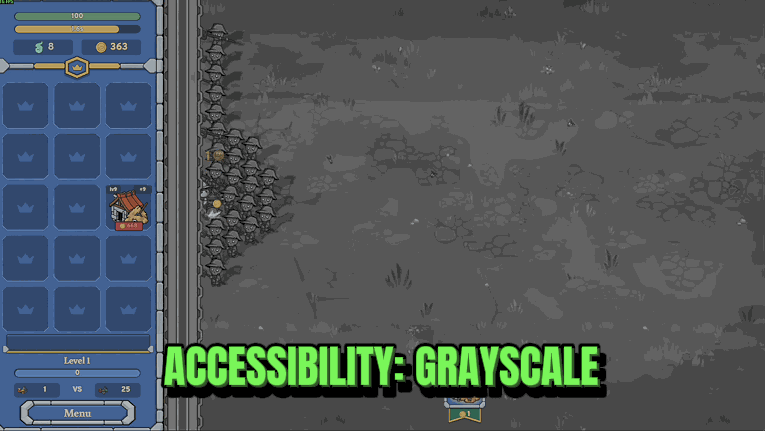
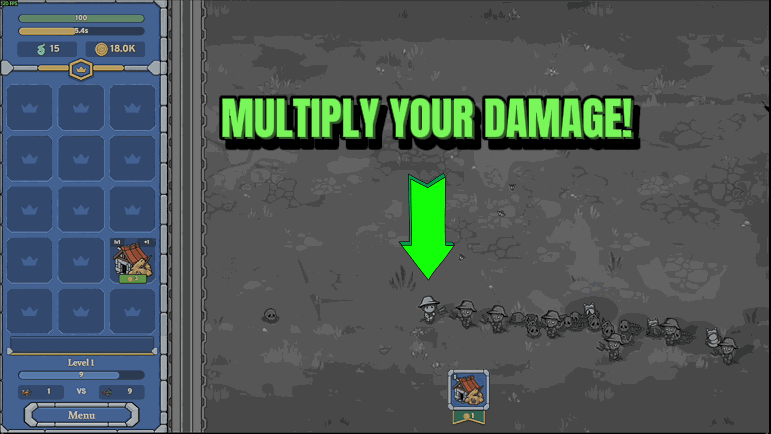
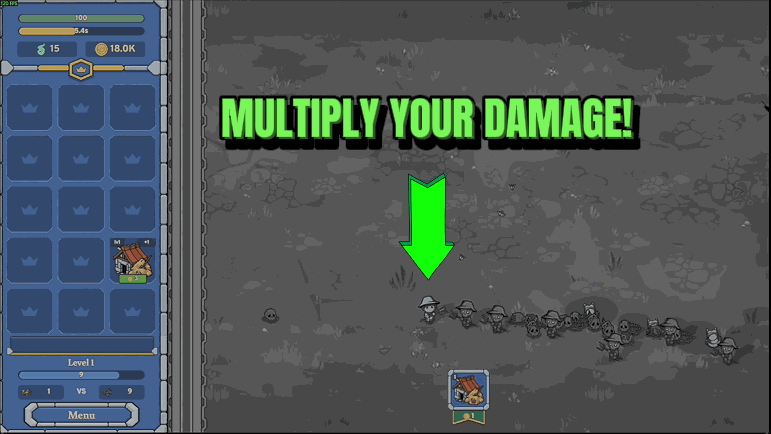
Hours of busy battles can wear on your eyes, and one picture won't suit every screen or room. Accessibility hands you four options to change it. Colour Filter switches between Off and Greyscale, which takes the colour out and can help if bright colours tire you or you pick units out more easily by shape. Filter Strength sets how far Greyscale goes, from 0 (no change) to 100 (fully grey), starting at 100. High Contrast, 0 to 100 and starting at 0, pushes light and dark apart and strengthens colours, for a picture that looks flat or washed out. Brightness runs from -100 to 100 around a normal 0: lower it in a dark room, raise it on a dim screen, and at 100 the light is doubled. The game has no text-size setting and its screens have fixed layouts, so text stays the size it is. Greyscale is the only colour filter, with no red-green or blue-yellow option, and nothing here corrects colour blindness or any eye condition. Some of the game's screens switch these effects off and keep their normal look. Colour Filter on Off with High Contrast and Brightness at 0 gives you the game's own picture.
</>What is Accessibility?
Accessibility changes the look of Here Comes the Horde with four launcher options. Colour Filter turns Greyscale on, Filter Strength sets how grey it goes, High Contrast spreads light and dark apart, and Brightness darkens or lightens the picture. It never changes text size, which the game has no setting for, and its colour filter comes in Greyscale only, with no colour-blindness correction. Some screens keep the game's normal picture.
</>Common questions about Accessibility
What does Accessibility do in Here Comes the Horde?
It changes how the game's picture looks through four options in the launcher: Colour Filter, Filter Strength, High Contrast and Brightness. Each works on its own, so you can brighten the picture without going grey, or go grey and leave contrast and brightness exactly where the game has them.
Can it make the text bigger?
No. There's no text-size setting in the game, and its screens are built with fixed layouts, so text stays at the size the game draws it. None of the four options touch size or layout; they work on colour, contrast and brightness and nothing else.
Is there a filter for colour blindness?
No. The one colour filter here is Greyscale, and there's no red-green or blue-yellow filter. The mod doesn't correct colour blindness or any other eye condition: Greyscale takes colour away from the picture altogether instead of shifting one colour towards another. That also means two things that differ only by colour can look alike in grey, while differences in shape and lightness stay.
Does the effect show on every screen?
Not on all of them. On some screens the game turns these effects off itself, and there you'll see its normal colours, contrast and brightness whatever the launcher says. Nothing needs resetting afterwards: your four settings carry on wherever the game shows them.
What options does Accessibility include?
Filter Strength
How strong the Colour Filter is, from 0 (no change) to 100 (fully grey).
Brightness
Lightens or darkens the whole picture. 0 is the game's normal brightness; 100 doubles the light.
Colour Filter
Greyscale takes the colour out of the game's picture, which can help when colours are tiring to look at or units are easier to tell apart by shape. Off keeps the game's own colours.
High Contrast
Makes light and dark parts of the picture stand further apart and colours stronger. 0 is the game's normal look.
Accessibility is a ProjectMods mod for Here Comes the Horde that adds Greyscale, High Contrast and Brightness options; it can't change text size, Greyscale is its only colour filter, and some screens keep their normal look.
System Requirements
What features does Accessibility include?
- Greyscale, picked from Colour Filter, removes colour from the picture and leaves shape and light to tell things apart.
- Filter Strength moves in steps of 5, so you can keep part of the colour at 50 or go all the way to grey at 100.
- High Contrast widens the gap between light and dark, and deepens colours, the higher you set it from 0 to 100.
- Brightness darkens the picture below 0 and lightens it above, up to double the light at 100.
- Colour Filter starts on Off and the two other sliders at 0, so the game looks exactly as normal until you change something.
Best For
- Bright colours start to tire your eyes a few levels into a session, so set Colour Filter to Greyscale with Filter Strength at 50 for a calmer picture that still keeps some colour.
- You tell units apart by their outline more easily than by their colour, so choose Greyscale and leave Filter Strength at its full 100.
- Your screen makes everything look washed out, so raise High Contrast to 30 or 40 and light and dark separate more clearly.
- You play late at night in a dark room and the picture feels harsh, so drop Brightness to around -30 for a dimmer image.
More Mods for Here Comes the Horde
Unlock All Levels
Open all 30 levels with one press and start whichever you like, with the levels staying open in your save.
Boss Health & Damage
Two separate switches for the final boss: Lower Boss Health brings Moriana in with 10% to 100% of her 6,666,666 health, and Extra Boss Damage gives your army 10% to 1000% more damage against her.
Army Damage Boost
Every unit in your army deals 10% to 1000% more damage on top of your talents, set by a single slider, while their health, their attack speed and the horde stay exactly as they were.