Want more mods for Scam With Your Friends? Explore our entire collection!
Accessibility
"See the office your way. Hold the camera still."
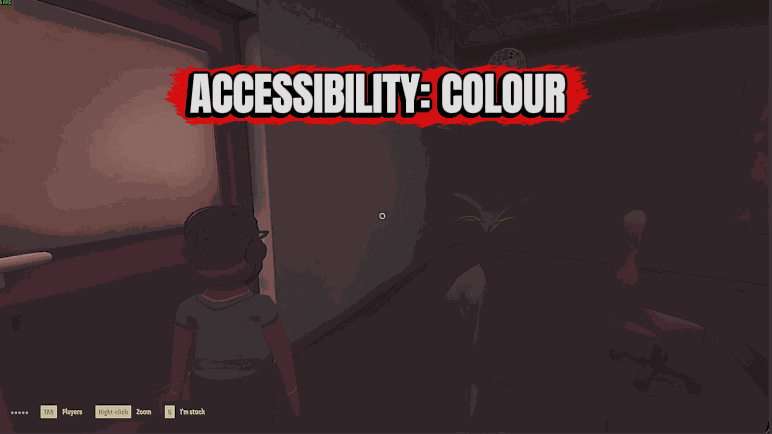
How do I install Accessibility?
Download the free ProjectMods desktop app, then install Accessibility for Scam With Your Friends in one click.
</>What does Accessibility do?
Scam With Your Friends has no brightness or colour settings of its own. If the office is too dim, two colours look the same to you or the camera shake wears you out, the game gives you nothing to adjust. Accessibility hands you six options that do. Colour Filter starts at Off and has four choices: Red-Green (Green-Weak), Red-Green (Red-Weak), Blue-Yellow and Greyscale. Filter Strength sets how far the shift goes, from 0 to 100, and starts at 100. High Contrast (0 to 100, starts at 0) pushes light and dark apart and strengthens colours. Brightness runs from -100 to 100: 100 doubles the light, -100 halves it and 0 is the game's normal picture. No Camera Shake holds your view steady through hard landings, explosions and the moment you get fired. No Dark Edges clears the darkening the game always draws around the screen, along with the heavier shadow that closes in when you're knocked down or hurt. The filter, High Contrast and Brightness change the 3D picture: the office, players and items. Menus and the on-screen display keep their own colours.
</>What is Accessibility?
Accessibility makes Scam With Your Friends easier to see and steadier to watch. Pick a Colour Filter (two Red-Green kinds, Blue-Yellow or Greyscale), tune it with Filter Strength, then add High Contrast or Brightness if the office is hard to read. No Camera Shake and No Dark Edges are separate switches. It recolours the office, players and items, never the menus or the on-screen display, and it leaves the game's settings and your save alone.
</>Common questions about Accessibility
What does Accessibility do in Scam With Your Friends?
It changes how the game looks on your screen so it's easier to see and steadier to watch. There are six options, and everything starts at Off or 0 except Filter Strength, which starts at 100. Nothing looks different until you pick a filter, move a slider or flip a switch.
Does the Colour Filter recolour the menus too?
No. Colour Filter, High Contrast and Brightness change the 3D picture: the office, the players and the items in it. Menus and the on-screen display keep their own colours, so text and buttons look the way they always do, whichever filter you've picked.
Which Colour Filter choice should I pick?
Pick the one that matches your colour vision. Red-Green (Green-Weak) is the most common kind. Red-Green (Red-Weak) is the kind where reds look dark. Blue-Yellow is for mixing up blue with green, or yellow with pink. Greyscale removes colour entirely. The filter doesn't correct colour vision. It moves the colours you mix up further apart so they're easier to tell from each other.
Will my friends see my filter or brightness in co-op?
No, only your own screen changes. It works the same if you host or join, and nobody else in the lobby sees a difference. The game's settings and your save aren't touched either, so your choices stay with you and never reach anyone else's game.
How do I get the game's normal look back?
Set each option back to its default: Colour Filter to Off, High Contrast and Brightness to 0, and the two switches off. Each one returns to the game's own look the moment you do. Switching the whole mod off removes everything at once.
What options does Accessibility include?
Filter Strength
How far the Colour Filter shifts colours, from 0 (no change) to 100 (the full shift). Lower it if colours look too strong.
Brightness
Lightens or darkens the whole 3D picture. 0 is the game's normal brightness, 100 doubles the light and -100 halves it. The game has no brightness setting of its own.
Colour Filter
Shifts the colours of the office and everyone in it so the ones you mix up stand further apart. Pick the kind of colour vision you have: Red-Green (Green-Weak) is the most common, Red-Green (Red-Weak) makes reds look dark, Blue-Yellow is for mixing up blue with green, or yellow with pink. Greyscale removes colour entirely. Off leaves the game's colours as they are. Menus and the on-screen display keep their own colours.
No Camera Shake
Keeps your view steady when the game would shake it: hard landings, trampolines, explosions and the moment you get fired. Off brings the shake back.
No Dark Edges
Removes the darkening the game adds around the edges and corners of the screen, including the heavier shadow that closes in when you're knocked down or hurt. Off brings it back.
High Contrast
Makes light and dark parts of the office stand further apart and colours stronger, on top of the game's own colour grading. 0 is the game's normal look.
Accessibility is a ProjectMods mod for Scam With Your Friends that adds a colour filter for red-green and blue-yellow colour vision, contrast and brightness sliders, and switches for camera shake and dark screen edges, all on the 3D picture of your own screen.
System Requirements
What features does Accessibility include?
- Colour Filter has four choices besides Off: Red-Green (Green-Weak), Red-Green (Red-Weak), Blue-Yellow and Greyscale.
- Filter Strength scales the colour shift from 0 (no change) to 100 (the full shift) in steps of 5.
- High Contrast goes from 0 to 100 and is added on top of the game's own colour grading.
- Brightness lightens or darkens the 3D picture in a game that has no brightness setting of its own.
- No Camera Shake keeps the view still on hard landings, on the Pop-Up Trampoline, in explosions and when you're fired.
- No Dark Edges removes the darkened corners of the screen, including the heavier ones that appear when you're knocked down or hurt.
Best For
- Red and green things in the office look alike to you. Set Colour Filter to Red-Green (Green-Weak), or to Red-Green (Red-Weak) if reds also look dark, and the two colours move further apart.
- The full filter is stronger than you need, so drop Filter Strength to 50 and the colours shift half as far.
- A dim corner of the office is hard to make out. Raise Brightness to 40 or 50 and add a little High Contrast so light and dark separate.
- Bouncing on a Pop-Up Trampoline throws the camera around. Switch on No Camera Shake and your view stays steady while you bounce.
- You've been knocked down and the shadow closing in hides what's going on around you. Switch on No Dark Edges and the picture stays clear to the corners.
More Mods for Scam With Your Friends

More Players
Lobbies you host take 9 to 20 players, you included, instead of the game's 8, and Check Lobby Size tells you what your live lobby really takes before you invite anyone.
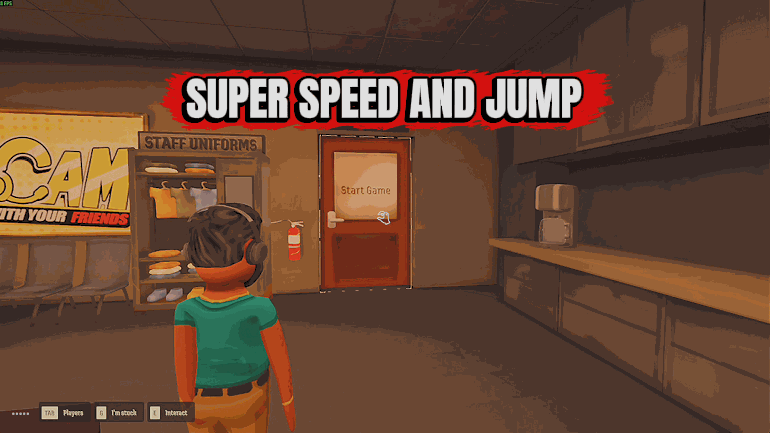
Speed, Jump & Gravity
Three separate switches for your own character: move at up to 400 percent speed, jump up to 500 percent as high, and lower gravity to as little as 10 percent. Boosted jumps never end in a fall knockdown.
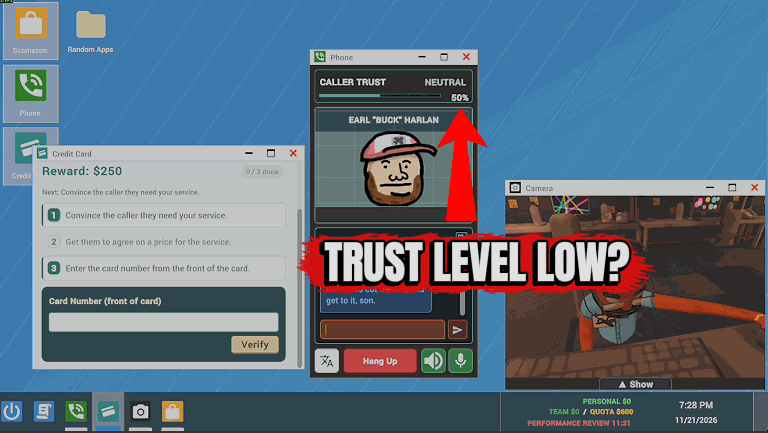
Caller Trust & No Hang-Ups
Two host switches for your calls: Raise Caller Trust keeps every caller's trust at or above a level you pick (1 to 100 percent, default 60), and Callers Never Hang Up keeps them on the line when they decide to leave. Callers still speak their own minds.