Want more mods for 687 Days on Mars - First Steps? Explore our entire collection!
Accessibility
"Colours you can tell apart. Panels you can read."
How do I install Accessibility?
Download the free ProjectMods desktop app, then install Accessibility for 687 Days on Mars - First Steps in one click.
</>What does Accessibility do?
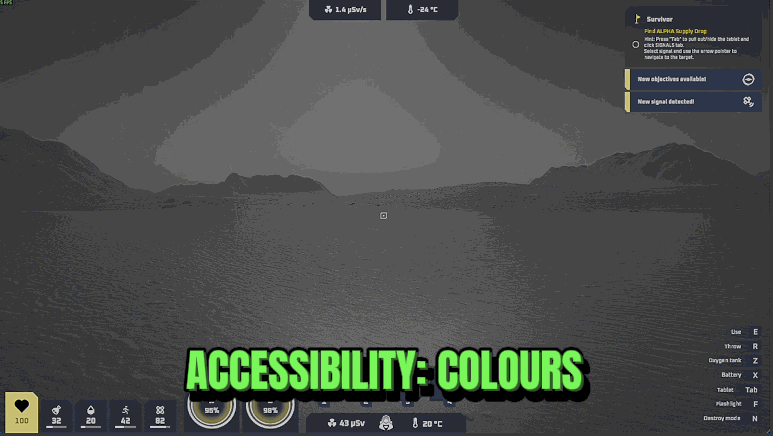
A red planet is hard going when some colours run together for you, and so are panels you have to squint at. Accessibility hands you five settings in the launcher, each working on its own. Colour Filter, off by default, shifts the colours of the world for three kinds of colour vision, or turns it greyscale. Filter Strength sets how far that shift goes, from 0 to 100 percent (100 by default). High Contrast, from 0 (the default) to 100, pushes light and dark further apart and makes colours stronger. Text Size makes the game's panels and menus bigger, text and boxes together, from 100 to 140 percent of your own UI scale (100 by default). It stops at the game's largest UI scale. No Dark Edges, off by default, removes the darkened edges the game draws around the screen. Put a setting back to its default, or switch the mod off, and the game looks exactly as it did.
</>What is Accessibility?
Accessibility gives you five launcher settings. Colour Filter with Filter Strength, High Contrast and No Dark Edges change the world and the screens on your modules, while Text Size grows the panels and menus (a few other elements keep their size). The filters never recolour menus or on-screen panels, Text Size stops at UI scale 1.1, and the game's own settings are never changed. There are no brightness, field of view or audio options.
</>Common questions about Accessibility
What does Accessibility do in 687 Days on Mars - First Steps?
It gives you colour filters for colour-blind players, a contrast boost, bigger panels and menus and a way to remove the darkened screen edges, all set from the launcher. Each setting works on its own, so you can use only Text Size, or only a filter, and leave the rest at their defaults, which change nothing.
Why don't the menus change colour with a Colour Filter on?
Because the filters only recolour the world itself: Mars, your base and the screens on your modules, such as the Meal Preparation Module. The game draws its menus and on-screen panels on top of that picture, so they keep their own colours, and High Contrast leaves them alone in the same way.
Why does Text Size stop making things bigger?
Because it never takes a panel past UI scale 1.1, the largest the game has. The game's UI scale comes in four sizes (0.8, 0.9, 1.0 and 1.1) and starts at 0.9, so from the default, Text Size tops out well before 140; only the smallest size needs all of it. At 1.1 there's nothing left to add, and a few on-screen elements outside the game's panels keep their size either way.
Does it change brightness, field of view or motion blur?
No, it leaves those to the game's own Settings, which already have Brightness, Field of View and Motion blur. It doesn't add subtitles, narration or screen-reader support either: everything it changes is on the picture, from colour and contrast to the size of panels and menus.
What options does Accessibility include?
Filter Strength
How far the Colour Filter shifts colours, from 0 (no change) to 100 (the full shift). The default is 100. Lower it if colours look too strong. It only changes the Colour Filter, so it does nothing while that is off.
Text Size
Makes the game's on-screen panels and menus bigger, on top of the UI scale you picked in the game's settings, up to the largest UI scale the game has. 100 is your own setting and the default. With the game's default UI scale, 125 already reaches the largest size; 140 gets there from the smallest. The compass and the item slots keep their size.
Colour Filter
Shifts the colours of Mars, your base and everything out in the world so the ones you mix up stand further apart. Pick the kind of colour vision you have: Red-Green (Green-Weak) is the most common, Red-Green (Red-Weak) is for when reds look dark to you, Blue-Yellow is for mixing up blue with green, or yellow with pink. Greyscale removes colour entirely. Screens on your machines change with the world; the menus and on-screen panels keep their own colours. Off leaves the game's colours as they are.
No Dark Edges
Removes the darkened edges the game puts around the screen, during storms too, so the whole picture is equally bright. Off brings them back.
High Contrast
Makes light and dark parts of the world stand further apart and colours stronger, on top of the game's own look, which keeps changing during storms. 0 is the game's normal look and the default; 100 is the strongest.
Accessibility is a ProjectMods mod for 687 Days on Mars - First Steps that recolours the world for colour-blind players (menus keep theirs), adds contrast, enlarges panels and menus and clears dark screen edges.
System Requirements
What features does Accessibility include?
- Colour Filter covers Red-Green (Green-Weak), Red-Green (Red-Weak) and Blue-Yellow colour vision, plus a Greyscale view.
- High Contrast stacks on the game's own look and catches up with its storm changes within about 2 seconds.
- Text Size grows text and boxes together, so a panel scales as one piece.
- No Dark Edges keeps the corners as bright as the middle of the screen, during storms too.
- Nothing is written to the game's settings, so your saved UI scale and Brightness stay exactly as you set them.
Best For
- Reds and greens on your module screens look alike to you, so pick Red-Green (Green-Weak) in Colour Filter and leave Filter Strength at 100.
- The full shift makes Mars look too strange for you, so drop Filter Strength to 50 and keep just enough of it to tell colours apart.
- You play on a TV across the room, so raise Text Size to 125 and the game's default UI scale grows to its largest size.
- Storm weather shifts the game's look, so set High Contrast to 40 and switch on No Dark Edges for an evenly bright picture.
More Mods for 687 Days on Mars - First Steps

Give Resources
Add any of 14 resources, from Energy and Water to Iron, Pure Copper and Silicon, to the storages you've built, from 1 to 100,000 a press, with only what fits going in.
Speed & Jump
Sets your walking and running speed from 50% to 300% of normal and your jump height from 50% to 500%, on foot only. The game's Mars gravity and its slowdowns from vitamins, carrying and weather stay in place.
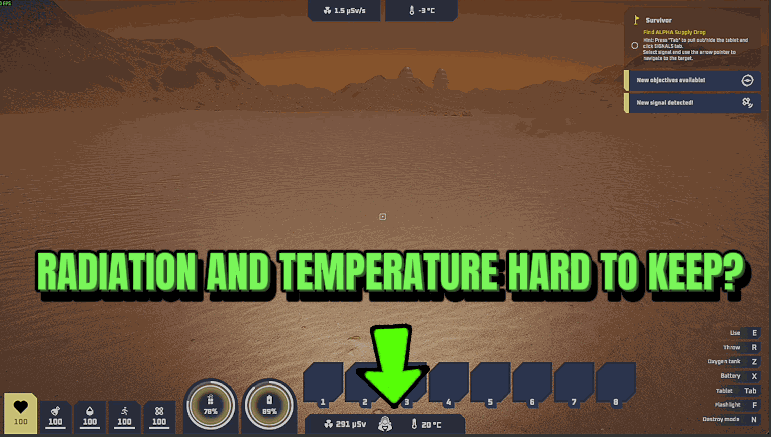
Radiation & Cold Protection
Two switches: Radiation Shield keeps the radiation in you at 0, solar storms included, and Stay Warm holds your suit at 20 °C without spending battery or the lander's power. Weather, storms and the outside temperature stay as they are.