Want more mods for Minecraft Dungeons II? Explore our entire collection!
Accessibility
"Colours that stand apart. A camera that holds still."
How do I install Accessibility?
Download the free ProjectMods desktop app, then install Accessibility for Minecraft Dungeons II in one click.
</>What does Accessibility do?
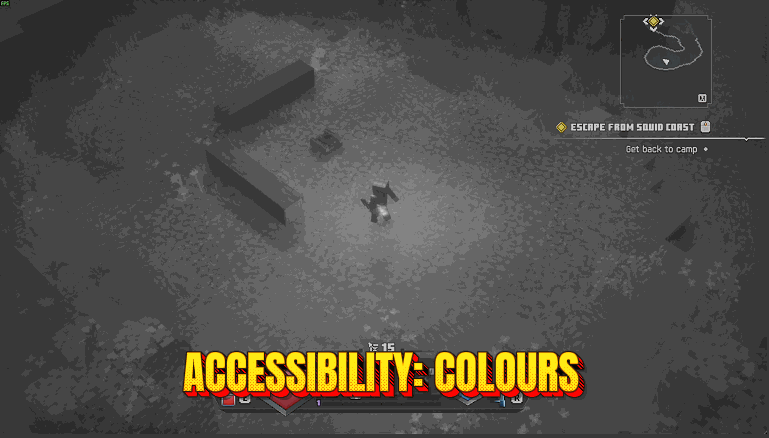
When two colours that matter look alike to you, a busy fight turns into guesswork. Accessibility hands you a Colour Filter with three colour-vision choices, Red-Green (Green-Weak), Red-Green (Red-Weak) and Blue-Yellow, each moving the colours you tend to confuse further apart. Or pick Greyscale, a choice the game's colour-blind modes don't include, to take the colour out of the world. Filter Strength decides how far the chosen filter goes, from 10 to 100 in steps of 10, and starts at 100. If screen shake gets in your way, switch on No Camera Shake and the view stays steady, something the game's own settings have no switch for. Both Colour Filter and No Camera Shake start off. Switch the mod off and the game's own colours and camera shake come back.
</>What is Accessibility?
Accessibility helps you see Minecraft Dungeons II more comfortably. Pick a colour-vision choice in Colour Filter, or Greyscale, then set Filter Strength from 10 to 100, and switch on No Camera Shake for a steady camera. Use the colour-vision choices or the colour-blind mode in the game's menu, not both at once. The mod works with offline heroes only, never greys out the HUD or menus, and keeps nothing in a save.
</>Common questions about Accessibility
What does Accessibility do in Minecraft Dungeons II?
It adds three settings for seeing the game more comfortably. Colour Filter suits red-green or blue-yellow colour vision, Filter Strength tones the filter down when the full shift is too much, and No Camera Shake is for anyone a shaking screen bothers.
Can I use Colour Filter and the game's own colour-blind setting together?
No, use one or the other. Only one colour correction covers the screen at a time, so if you've set a mode in the game's own colour-blind setting, turn it off in the game's menu before you pick Red-Green (Green-Weak), Red-Green (Red-Weak) or Blue-Yellow here.
What happens if the colours stay filtered after I pick Off?
Give it about 10 seconds. If the game's own settings can't be read at the moment the filter goes Off, the mod returns the colours to normal after that short wait. The mod only ever reads those settings, so nothing of yours is changed or saved along the way.
Who does it cover in couch co-op, and what happens with an online hero?
Everyone on this PC, as long as the heroes are offline. The colour filters and Greyscale cover the whole shared screen, and every local player's camera stops shaking. An online hero's game runs and saves on the game's servers, so while one is loaded the mod does nothing and hands your colours and camera back to the game. Your choices apply again once an offline hero is in the world.
What options does Accessibility include?
Filter Strength
How strong the Colour Filter is, from 10 (a slight shift) to 100 (the full shift, or no colour at all with Greyscale). Lower it if colours look too strong. Default 100.
Colour Filter
Shifts colours so the ones you mix up stand further apart. The three colour-blind choices reach everything on screen, the HUD and menus included: Red-Green (Green-Weak) is for greens and reds that blur together, Red-Green (Red-Weak) is for reds that look dark, Blue-Yellow is for mixing up blue with green, or yellow with pink. Use them or the game's own colour-blind setting, not both at once. Greyscale removes colour from the world; the HUD and menus keep theirs. Off leaves the game's colours as they are. Default Off.
No Camera Shake
Holds the camera steady: the screen no longer shakes during fights and other big moments. Switch it off and the game's shakes return. Off by default.
Accessibility is a ProjectMods mod for Minecraft Dungeons II that shifts colours apart for red-green or blue-yellow colour vision, can turn the world grey and stops camera shake, for offline heroes solo or in couch co-op.
System Requirements
What features does Accessibility include?
- The three colour-vision choices reach the HUD and menus as well as the world, so the whole screen shifts together.
- Pick Red-Green (Red-Weak) if reds look dark to you, or Blue-Yellow if blue and green, or yellow and pink, are the colours you mix up.
- With Greyscale, Filter Strength sets how much colour leaves the world: 100 drains it all, 50 keeps half of the game's own, and the HUD and menus stay in colour throughout.
Best For
- Reds and greens blur together in a crowded fight, so pick Red-Green (Green-Weak) in Colour Filter and leave Filter Strength at 100 for the full shift.
- Colourful, busy scenes feel like too much at once, so pick Greyscale and set Filter Strength to 50 for a muted world.
- A shaking screen makes it hard to keep track of your hero, so switch on No Camera Shake for a camera that stays put.
More Mods for Minecraft Dungeons II
God Mode
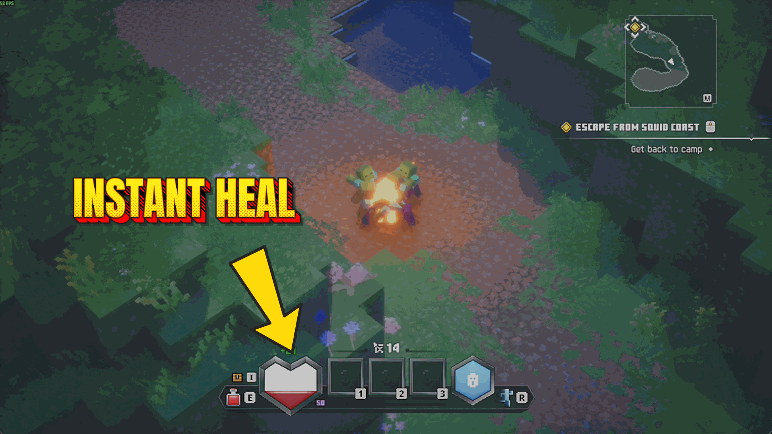
Your health holds through every hit while God Mode is on, and Heal To Full fills it to maximum on demand, for each hero playing on this PC.

Quick Salvage
Breaks down the weapons, armor and artifacts in player 1's inventory up to the rarity you pick, all in one press, while anything equipped or locked stays. Offline heroes only.
No Cooldowns
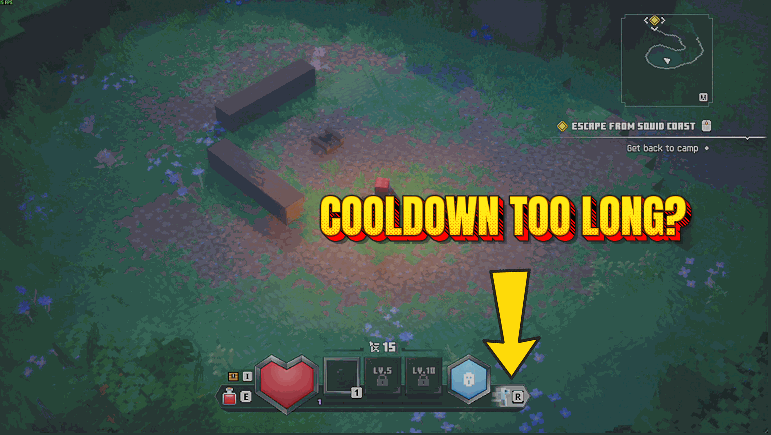
Three switches take the waiting out of your roll, artifacts and health potion: roll charges refill at once, and artifact and potion cooldowns drop to 1% of their normal length.