Want more mods for Military Base Tidy Up? Explore our entire collection!
Accessibility
"Clearer colours, bigger words, calmer screen."
How do I install Accessibility?
Download the free ProjectMods desktop app, then install Accessibility for Military Base Tidy Up in one click.
</>What does Accessibility do?
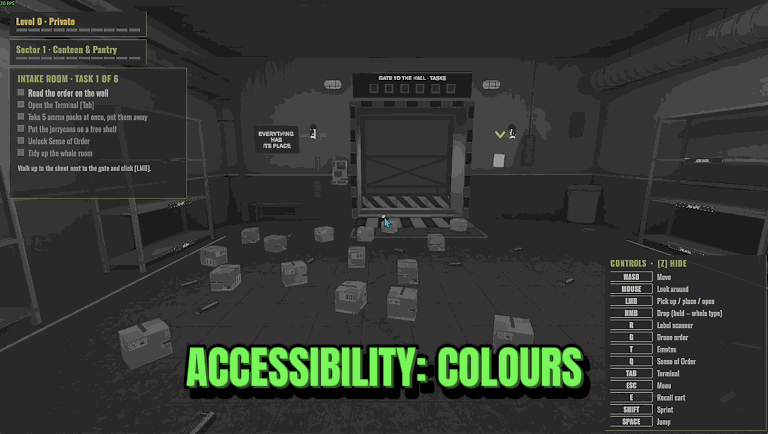
Colours that blur together, small text and a grainy, darkened picture can all make a tidy harder to read. Accessibility hands you visual comfort settings in one place in the launcher. Colour Filter shifts the world's colours so the ones you mix up stand further apart, with Red-Green (Green-Weak), Red-Green (Red-Weak), Blue-Yellow and Greyscale on offer, and Filter Strength sets how far it goes, 0 to 100 (default 100). High Contrast, 0 to 100 (default 0), adds contrast and colour strength on top of the game's own Contrast setting. Text Size runs from 100 to 200 in steps of 5: the HUD grows with it up to the game's largest HUD size of 130%, while menus and windows grow by the full amount. No Film Grain removes the speckled grain in the main menu and Sector Zero, and No Dark Edges clears the darkened corners in the main menu, the base and Sector Zero. Turning a setting back off restores the game's look, and your own HUD size, Brightness and Contrast settings are never changed.
</>What is Accessibility?
Accessibility gathers visual comfort settings for Military Base Tidy Up. Colour Filter and Filter Strength separate colours you mix up, High Contrast adds punch to the world, Text Size enlarges the HUD and menus, and No Film Grain and No Dark Edges clean up the picture. It never recolours the HUD or menus, never pushes the HUD past 130%, and it doesn't fix colour blindness; it makes colours easier to tell apart.
</>Common questions about Accessibility
What does Accessibility do in Military Base Tidy Up?
It puts visual comfort settings in the launcher: a colour filter for colour vision differences, extra contrast, bigger text, and switches that remove the film grain and the dark screen edges. Each works on its own, and none of them touch the options in the game's SETTINGS menu.
Why doesn't Colour Filter change the HUD?
The colour settings reach only the 3D world. The HUD and menus are drawn on top of it and keep their own colours, which goes for Colour Filter, High Contrast, No Film Grain and No Dark Edges alike. Text Size is the one setting that reaches the HUD and menus.
My HUD size is already 130% in Settings. Will Text Size do anything?
Yes, for menus and windows, which still grow by the full percentage. The HUD itself can't go past 130%, the largest HUD size the game has, so it stays put. Lower down, the two sizes multiply: at a Settings HUD size of 100%, a Text Size of 130 takes the HUD to the top; at 80%, Text Size 160 brings it to 128%; at the smallest size of 60%, Text Size 200 brings it to 120%.
Does Text Size enlarge every piece of text?
No. Text shown out in the world, like in-world screens and labels, stays at its normal size, and text you type in input boxes such as chat is left alone. Where a box has no room to grow, its words stop at the box's edge.
What happens when I switch the whole mod off?
Every change goes at once, and the HUD returns to the HUD size you picked in Settings. Nothing is saved by the mod, and the game's own HUD size, Brightness and Contrast settings were never changed in the first place, so there's nothing to reset by hand.
What options does Accessibility include?
No Film Grain
Removes the speckled noise laid over the picture in the main menu and in Sector Zero. Off brings it back.
Filter Strength
How far the Colour Filter shifts colours, from 0 (no change) to 100 (the full shift, the default). Lower it if colours look too strong.
Text Size
Makes text bigger, from 100 (the game's normal size, the default) to 200. The on-screen HUD grows through the game's own HUD size, on top of the size you picked in Settings, up to the largest HUD size the game has (130%). Menus and windows the HUD size never reaches grow by the full amount, and their buttons and boxes grow with the words where there's room. Text shown out in the world around you stays as it is. 100 puts everything back.
Colour Filter
Shifts the colours of the world around you so the ones you mix up stand further apart. Pick the kind of colour vision you have: Red-Green (Green-Weak) is the most common, Red-Green (Red-Weak) makes reds look dark, Blue-Yellow is for mixing up blue with green, or yellow with pink. Greyscale removes colour entirely. The HUD and the menus keep their own colours. Off (the default) leaves the game's colours as they are.
No Dark Edges
Removes the darkened corners and edges of the screen in the main menu, the base and Sector Zero, so the whole picture is equally bright. Off brings them back.
High Contrast
Makes light and dark parts of the world stand further apart and colours stronger, on top of the game's own Contrast setting. From 0 (the game's normal look, the default) to 100.
Accessibility is a ProjectMods mod for Military Base Tidy Up that adds a colour filter, extra contrast, bigger text and switches for film grain and dark edges; the colour settings reach the 3D world only, and the HUD grows no larger than 130%.
System Requirements
What features does Accessibility include?
- Colour Filter has four modes: Red-Green (Green-Weak), Red-Green (Red-Weak), Blue-Yellow and Greyscale, each softened or strengthened with Filter Strength.
- High Contrast stacks extra contrast and colour strength on the game's own Contrast setting, from 0 to 100.
- Text Size grows menus and windows up to 200%, and their buttons and boxes grow with the words where there's room.
- No Film Grain and No Dark Edges each switch off one screen effect, separately.
- Everything stays on your own screen: it works solo, as host or as a guest, and nothing is sent to other players.
Best For
- Reds and greens in the world look alike to you, so pick Red-Green (Green-Weak) in Colour Filter and lower Filter Strength to 70 if the shift feels heavy.
- Menu text is hard to read from the sofa, so set Text Size to 150 and windows grow by half while the HUD grows as far as 130%.
- The grain and dark corners in Sector Zero tire your eyes, so switch on No Film Grain and No Dark Edges for an even picture.
- Shapes in the base blend into each other, so set High Contrast to 40 and light and dark parts stand further apart.
More Mods for Military Base Tidy Up
Give Vouchers
Add up to 10,000,000 Supply Vouchers per press, clear your balance to 0 SV, or switch on Free Shopping so the Quartermaster's Store costs nothing. Host or solo.
Game Speed
Runs the whole game from 25% to 400% of normal speed when you host or play solo, so you, your drones and loose items all speed up or slow down together.
Better Drones
Multiplies your drones' Cargo Hold, Engines speed and Radar range: up to 5x the items per trip and 3x the speed and spotting distance. Works when you host or play solo.