Want more mods for Project: Doors Demo? Explore our entire collection!
Accessibility
"Colours you can tell apart. Text you can read."
How do I install Accessibility?
Download the free ProjectMods desktop app, then install Accessibility for Project: Doors Demo in one click.
</>What does Accessibility do?
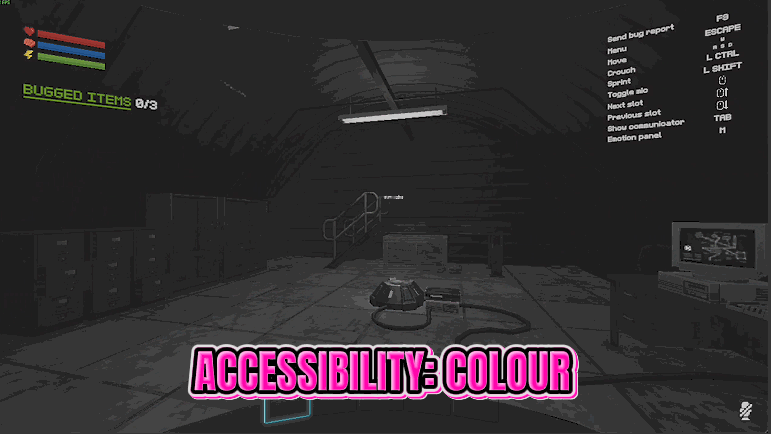
Horror games lean on colour, small text and effects that cover the whole screen. If you mix up certain colours, sit far from the display or find sudden flashes hard to take, Accessibility hands you six options for your own screen. Colour Filter shifts the world's colours so the ones you confuse stand further apart: Red-Green (Green-Weak), Red-Green (Red-Weak), Blue-Yellow, or Greyscale, which removes colour entirely. Filter Strength sets how much of that shift is applied, from 0 to 100 percent, starting at 100. High Contrast, 0 to 100 and starting at 0, pushes light and dark apart and strengthens colours for anyone who loses detail in dark scenes. Text Size enlarges HUD text and subtitles from 100 to 200 percent for anyone who needs bigger letters. No Hurt Screen Effects hides the hit flash and the low health overlay, and No Sanity Screen Effects hides the low sanity screen effect, for players bothered by full-screen effects. Damage and sanity work as normal. Every option undoes only its own change: Colour Filter Off and High Contrast 0 return the game's own colours, and Text Size 100 returns normal text.
</>What is Accessibility?
Accessibility gives Project: Doors Demo a set of comfort options. Colour Filter and Filter Strength shift the world's colours so they are easier to tell apart, High Contrast separates light from dark, Text Size enlarges HUD text and subtitles, and No Hurt Screen Effects and No Sanity Screen Effects hide those overlays. It doesn't scale menus, add a brightness option or reduce damage or sanity loss, and it changes only your own screen.
</>Common questions about Accessibility
What does Accessibility do in Project: Doors Demo?
It changes how the game looks on your own screen so it is easier to see and read. There are six options, all at their defaults until you touch them. Any player in a co-op squad can use it and nobody else's picture changes. Nothing is saved, and the game's own settings stay as you left them. There is no brightness option, since the game has its own.
Which Colour Filter should I pick?
Pick the one that matches the colours you mix up. Red-Green (Green-Weak) is the most common kind. Red-Green (Red-Weak) is for when reds also look dark. Blue-Yellow is for mixing up blue with green, or yellow with pink. The filter moves colours further apart on screen and does nothing to your colour vision itself, so try each one and keep the choice where things separate best for you.
Why did the picture change in other ways when I turned on a filter?
The mod may have switched post-processing back on for your view. That happens only when the game's own post-processing setting is off while a colour filter or High Contrast is in use, and the game's other post effects return with it. It is put back when Colour Filter is Off and High Contrast is 0. The colour options themselves work on the 3D world: the rooms and what's in them.
What does Text Size leave at normal size?
Menus are not scaled, and a label the game keeps resizing itself is left alone. At 200 percent a very long subtitle line can run wider than its box, so step down by 5 until it fits. The mod can't add subtitles where the game has none.
Do the screen effect switches make low health or low sanity less dangerous?
No. You take the same damage and lose the same sanity, and whatever else low sanity brings still happens. Only the overlays are hidden. The heal flash, the effects from status effects and the effects tied to anomalies stay on. If you switch an option off while the game still has its overlay running, the overlay returns.
What options does Accessibility include?
Filter Strength
How far the Colour Filter shifts colours, from 0 (no change) to 100 (the full shift). Lower it if colours look too strong.
Text Size
Makes the text on the HUD and the subtitles bigger: the interact prompt, item hints, inventory item names, notifications and subtitle lines. 100 is the game's normal size, 200 is twice as big. Menus stay as they are.
No Hurt Screen Effects
Hides the flash that covers your screen when you're hit and the low health overlay. You still take damage as normal. Off: both show again.
No Sanity Screen Effects
Hides the screen effect that sets in when your sanity runs low. Your sanity still drops as normal. Off: the effect shows again.
Colour Filter
Shifts the colours of the world so the ones you mix up stand further apart. Pick the kind of colour vision you have: Red-Green (Green-Weak) is the most common, Red-Green (Red-Weak) makes reds look dark, Blue-Yellow is for mixing up blue with green, or yellow with pink. Greyscale removes colour entirely. It works on the 3D world. If you have switched the game's post-processing off in its graphics settings, it may come back on for your view while a filter or High Contrast is in use. Off leaves the game's colours as they are.
High Contrast
Makes light and dark parts of the world stand further apart and colours stronger, on top of the game's own look. 0 is the game's normal look.
Accessibility is a ProjectMods mod for Project: Doors Demo that adds a colour filter for anyone who mixes up certain colours, stronger contrast, bigger HUD text and subtitles (menus stay as they are), and switches that hide the hurt and low sanity overlays.
System Requirements
What features does Accessibility include?
- Colour Filter has four filters: Red-Green (Green-Weak), Red-Green (Red-Weak), Blue-Yellow and Greyscale.
- Filter Strength moves in steps of 5, and 0 leaves colours unchanged.
- High Contrast at 100 adds 40 points of contrast and 30 of saturation on top of the game's own look.
- Text Size covers the interact prompt, item hints, inventory item names, notifications and subtitle lines.
- No Hurt Screen Effects and No Sanity Screen Effects take down an overlay already on screen within a quarter of a second.
Best For
- Red and green things in a room look alike to you, so set Colour Filter to Red-Green (Green-Weak) and, if the result looks too strong, bring Filter Strength down from 100.
- Reds look dark to you and sink into the shadows. Choose Red-Green (Red-Weak) and try High Contrast at 30 or so alongside it.
- You play on a TV from the sofa and can't read the item hints, so raise Text Size from 100 towards 200 until the prompts and subtitles are readable.
- Sudden full-screen flashes are hard on you, so switch on No Hurt Screen Effects and No Sanity Screen Effects and keep an unobstructed view.
More Mods for Project: Doors Demo
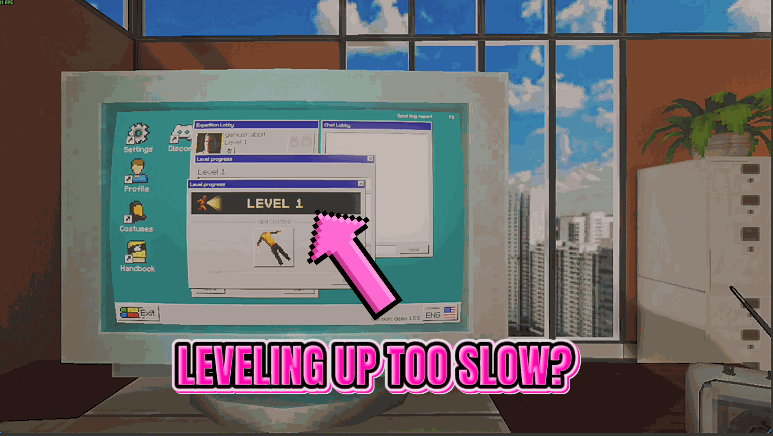
Give XP & XP Multiplier
Multiplies the XP rewards you earn, up to ten times, and adds a chosen lump of XP at a press. Given XP waits for your next debriefing before it counts, and all of it stays in your profile for good.
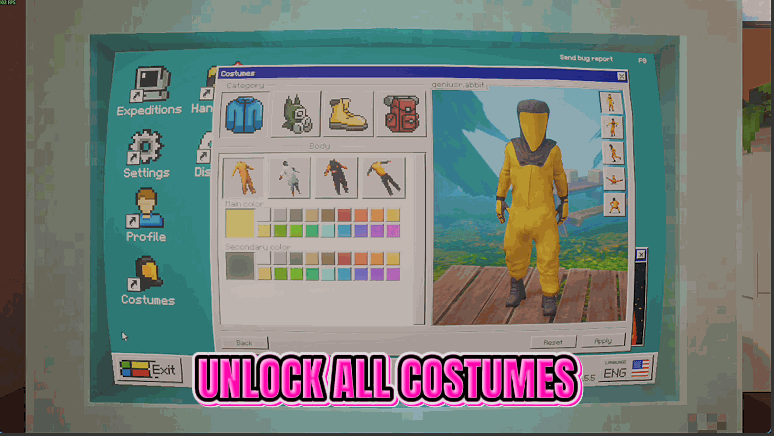
Unlock All Outfits & Emotes
Unlocks the only two things Project: Doors Demo keeps locked: its fourth body, normally a level reward, and the one emote no demo level hands out. A button each, saved to your own profile for good.
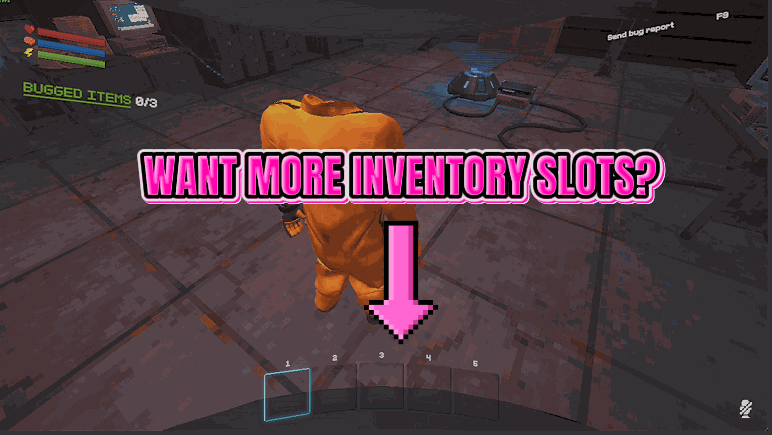
More Inventory Slots
For solo play only: adds inventory slots while you're the only player in the game, up to 9 slots in total. With anyone else in the game it does nothing.